
The Permissions Manager allows project Owners to configure bulk and very granular permissions for viewing, editing, and receiving notifications.
Accessing the Permissions Manager
Navigate to Permissions, which will be located in the Host Navigation for project Owners. (Reminder: If you're not seeing this option in the Host Navigation, note that bulk permission editing is available to project Owners only.)
Filtering and Refining Permissions
First select an initial category that you would like to adjust by choosing to view permissions for dashboards, tasks, resources, organizations, or hosts. Following that selection, the second dropdown filter will populate with available options from within that category.
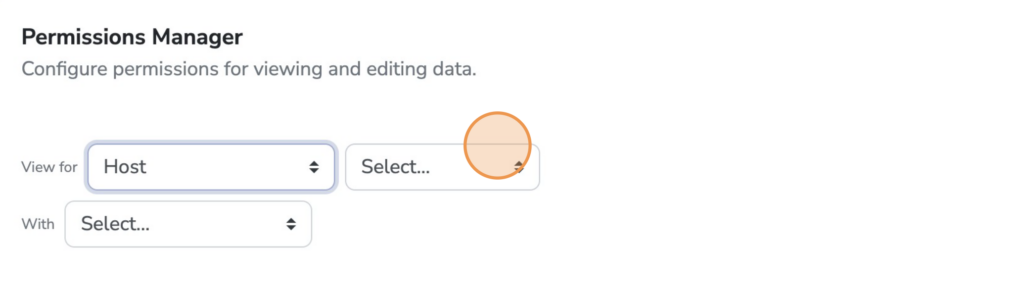
Further refine your target to display the needed permissions to adjust.
Once finalized you can change single permissions by clicking a check mark, or use the check mark at the top of a column to deselect or select all.

Common Permission Scenarios
Configure each of these options to fit your needs. One common example we see is for read-only access for leadership team members. Sort to the organization and individual to start, then deactivate Edit and Notify check marks. The leadership team member would then be able to view the project as needed, without being burdened by ongoing activity notifications.